How to Close a Margin Account
This guide explains how to close a margin account you no longer need. Closing an account reclaims the SOL rent deposit you paid when you created it.
Prerequisites
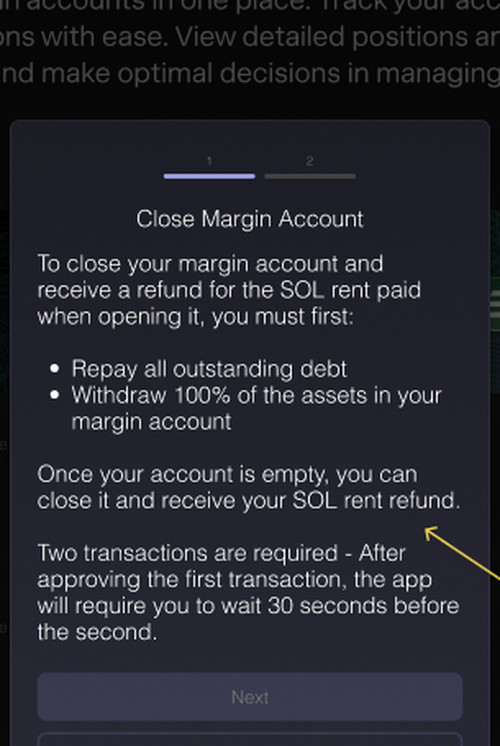
Before you can close a margin account, it must be completely empty:
- Repay all outstanding debt — any borrowed assets must be fully repaid. There cannot be any remaining debt.
- Withdraw 100% of your assets — all deposited assets must be withdrawn from the account, including any small residual amounts.
You can check your account's balances on the Portfolio page. Both Assets and Liabilities must show $0.00 before the close option becomes available. If either balance is non-zero, the close button in the modal will be disabled.
Step 1: Navigate to the Portfolio Page
Go to the Portfolio page from the top navigation. You'll see all your margin accounts listed under the Accounts tab. On mobile, expand the account section to reveal the close button.
Step 2: Close Margin Account
On the account you want to close, click the Close Margin Account button.
Glow will check your account and open the Close Margin Account modal.
Step 3: Confirm and Approve
The modal will remind you of the prerequisites and confirm that your SOL rent will be refunded upon closure.
Accounts without a lookup table
If your account does not have a lookup table, the process is straightforward:
- Review the information in the modal.
- Click Close Margin Account to approve a single wallet transaction.
Accounts with a lookup table
If your account has a lookup table, closing requires two transactions with a short waiting period:
- Transaction 1 — removes the lookup table from your account. Click Next to approve this transaction in your wallet.
- Waiting period — after the first transaction is confirmed, the app requires you to wait 2 minutes before proceeding. This waiting period is required by the Solana network.
- Transaction 2 — once the timer completes, click Close Margin Account to approve the final transaction and close your account.
You don't need to check — Glow detects this automatically and shows you the correct flow. If you created your account recently, it likely has a lookup table and will follow the two-transaction flow.
If you dismiss the modal or don't sign the second transaction, you can resume where you left off by clicking the Close Margin Account button again — the app will take you back to step 2. However, if you deposit or borrow any assets in the meantime, you'll need to empty the account again and start from step 1.
Step 4: Confirmation
Once the closure transaction is confirmed, a "Margin account closed successfully" snackbar will appear at the top of the screen. Your SOL rent deposit (0.063865 SOL) will be refunded to your wallet, and the account will be removed from your Portfolio.

Closing a margin account is permanent. If you want to use Glow again later, you can always create a new margin account.